![logo-text.svg]](https://knowledge.transparent.com/hubfs/logo-text.svg)
Note: You can also create a free trial account at this webpage.
- Once you have accessed Transparent Language Online, enter your login details as shown below.
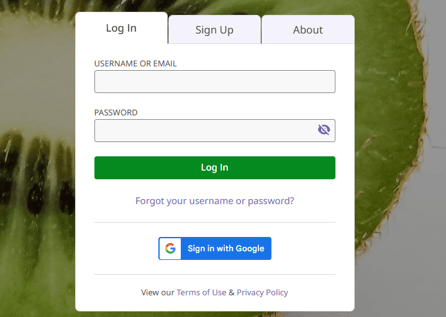
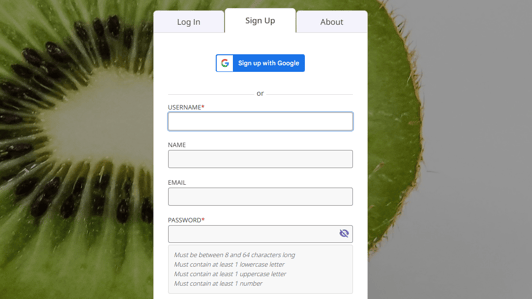
- If you do not have an account, access the Sign Up tab and enter all required account details.
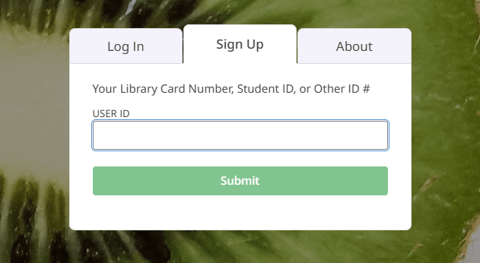
- You may be asked to provide your Library ID # or similar Barcode before proceeding to the Account Registration page.
- After account creation, you'll be automatically logged in and sent to the Language Selection page.
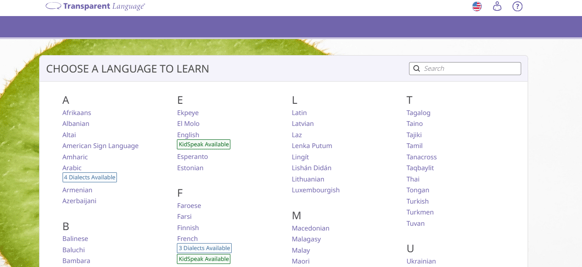
- Click/tap your language. A language dialect context menu may appear. Select your dialect and you'll be sent to your main learning page.
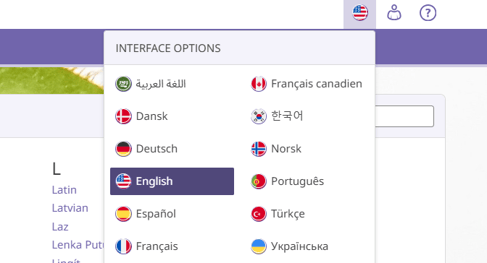
- Optionally, click/tap the 'Flag' button in top-right of language selection screen to change the user interface localization.
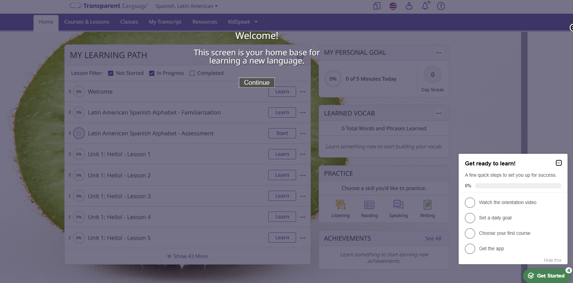
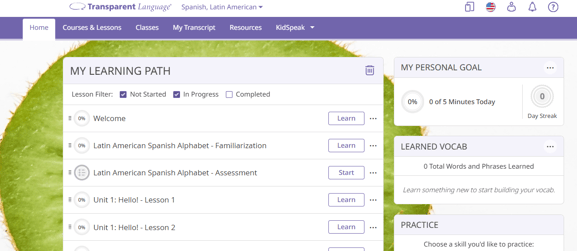
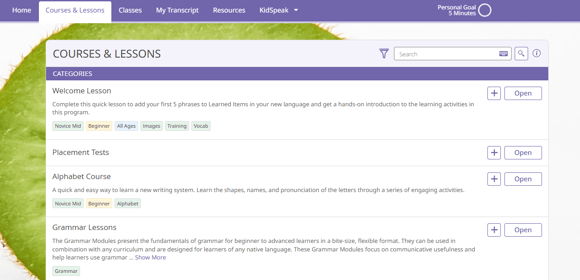
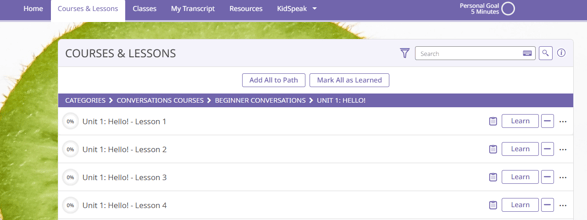
- After selecting a language you'll be sent to the main learning page with a help overlay. You can click through the different pages of the help overlay or dismiss it completely. Depending on your language, the Learning Path may already be populated with a course. You can begin here, or navigate to the Courses & Lessons page to search for more advanced content. You can add any lessons & courses into your main Learning Path by drilling down into the containing category. Click 'Add to Path' from the lesson action menu, or from the category's header section.
- Note: Every language pair has different courses & lessons available. For example: The course Beginner Conversations is available in Latin American for English speakers, but may not be available in Finnish for English speakers. You can see all courses available on our website after selecting your organization type in the header: https://www.transparent.com/languages#individuals
- If you're a student in a class, you may have been provided a class enrollment code or link. Simply paste the class enrollment link into the browser address bar and hit Enter key to enroll (example link: https://education.transparent.com/schoolname/game/enroll?code=fallspan101). If you were just provided an enroll code, navigate to the Classes page.
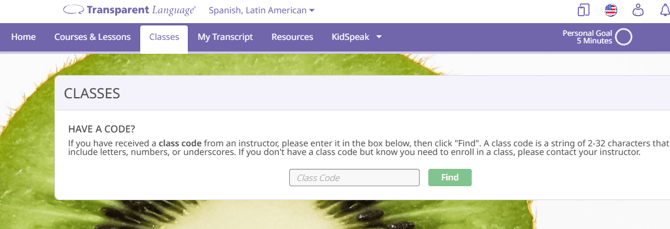
- Paste the enrollment code into the field and click/tap Find. The class should appear with an 'Enroll' button. Click/tap to enroll in the class.
- You will automatically be sent to the Class Assignments page and all lessons/courses will appear. Assignments with due dates appear at the top, sorted by soonest to latest.
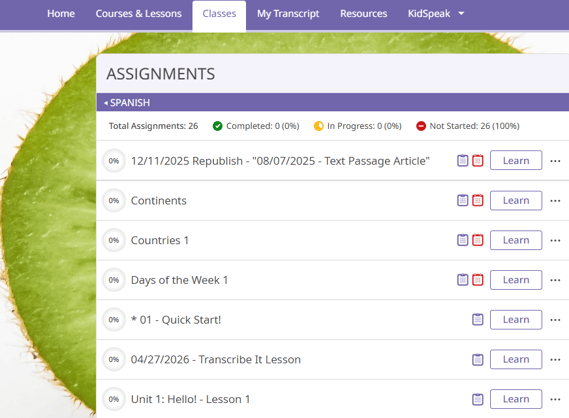
- After enrolling in a class, all assignments are automatically added to your main Learning Path. The learning path is sorted like this: Assignments with due dates > Assignments without due dates > Unassigned Content.
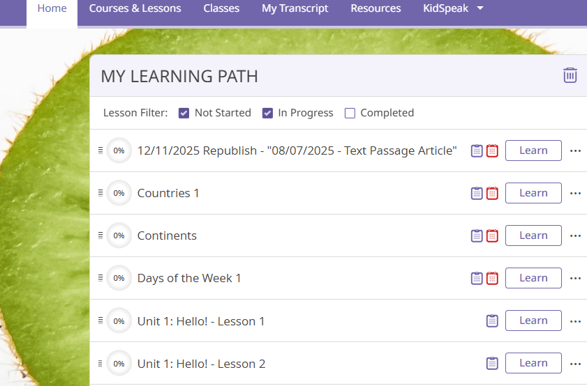
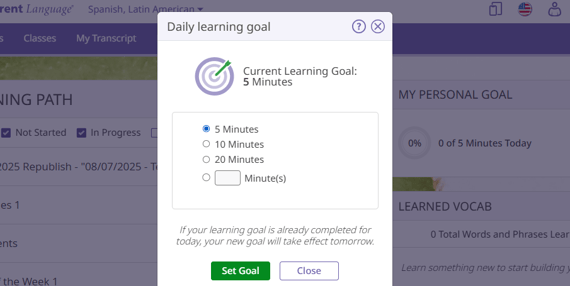
- On your main learning page, click Learn to start any lesson. You may also change your Daily Goal in the right-pane. Completing lessons will add vocab items into your Learned Vocab bucket. Near the bottom of the right-pane, you can practice using many activities and select your desired content.
- Click/tap the action menu and select 'Edit Goal'
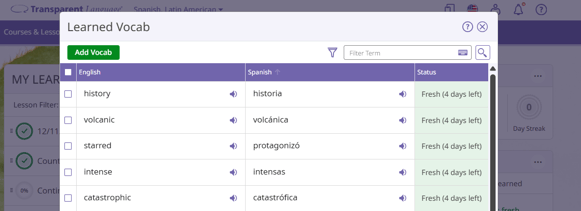
- Click/tap the Learned Vocab action menu and select 'View All Learned Vocab'. Note: Learned vocab go stale after sometime, and you can refresh them anytime by starting a Refresh Session. Stale vocab simply means you haven't practiced or seen them recently.
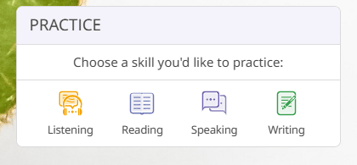
- Click/tap your desired skill from the Practice menu.
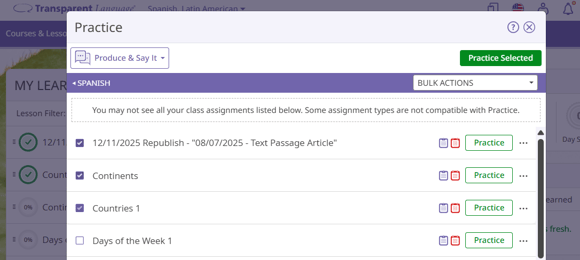
- Click/tap the Practice button and you'll be shown the content selection screen.
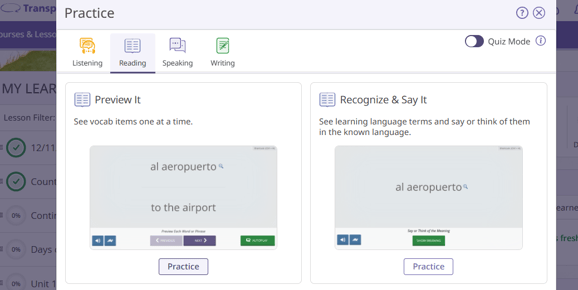
- Choose your lessons or Learned Vocab items and select Practice in top-right of the window.
- If you're looking to use the Transparent Language mobile app on iOS or Android, see this tutorial: Installing and Logging in to the Transparent Language Mobile App